
Spam Filter Change FAQs
Clearsky IT is replacing Graphus with INKY email security. These FAQs explain what changes for you and what, if anything, you need to do.
Why are we changing from Graphus to INKY email security?
We’re upgrading our email security platform to provide better protection against phishing emails, malware, impersonation attacks and suspicious links. INKY also makes it easier for users to identify potentially dangerous emails through clear colour-coded banners.
The INKY website is here
Do I need to install anything?
No. INKY works automatically with your existing email account and supports Outlook, Outlook Web, Apple Mail, Gmail and mobile email apps.
Will my email address change?
No. Your email address, mailbox, folders and contacts will remain exactly the same.
What do the coloured banners mean?
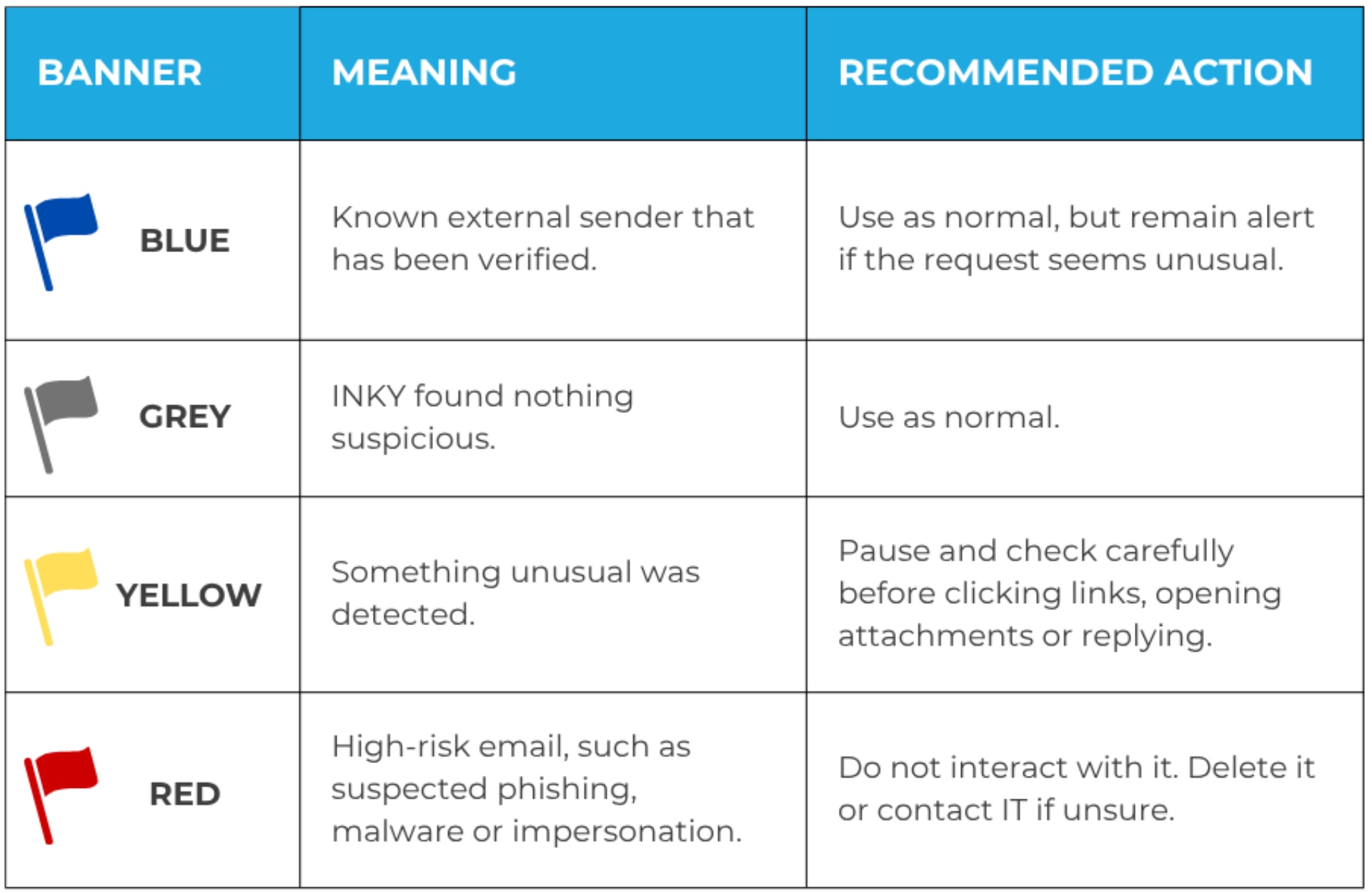
Why has a genuine email been marked with a yellow banner?
A yellow banner doesn’t necessarily mean the email is malicious. It means INKY has detected something unusual, such as:
– A first-time sender
– An unexpected request
– An email coming from an unusual location
– A message asking for sensitive information
Always take a moment to verify the request before proceeding.
What should I do if I think an email has been incorrectly flagged?
Use the Safe option within the INKY banner. This helps improve INKY’s accuracy and reduces false positives in the future.
What if I receive a phishing email?
Use the Phish option in the INKY banner to report it. This helps improve protection for everyone in your organisation.
Will INKY stop all phishing emails?
No email security system can guarantee 100% protection. INKY significantly reduces the risk, but users should still remain cautious when opening attachments, clicking links or responding to unexpected requests.
What happens if I click a suspicious link?
INKY checks links in real time and may display a warning page if the destination appears dangerous. If you are unsure, do not proceed and contact your IT support team.
Can I manage newsletters and marketing emails?
Yes. INKY can identify newsletters and promotional emails as Graymail. You can route these to a dedicated folder to help keep your inbox organised.
How do I access my INKY settings?
From any INKY banner, select Details and then User Dashboard. Sign in with your Microsoft 365 account when prompted.
Will INKY work on my phone?
Yes. INKY banners appear across supported email applications, including Outlook Mobile, Outlook Web, Apple Mail and Gmail.
Will this impact my day-to-day email use?
Most users will notice very little difference other than the new security banners. Email will continue to work as normal whilst benefiting from additional protection.
Who do I contact if I have questions?
Please contact Clearsky IT here if you need assistance or have concerns about a message you’ve received, or view the Services section here
____________________________________________________________
Top Tip: If you’re ever unsure about an email, stop and verify. A 30-second phone call can prevent a major security incident
