
Before you switch on Copilot, check who can see what
Microsoft 365 Copilot only shows people what they already have access to. In many businesses, that is far more than anyone intended.
By Dave Kelsey, Head of Operations, Clearsky IT – Published 16 November 2026
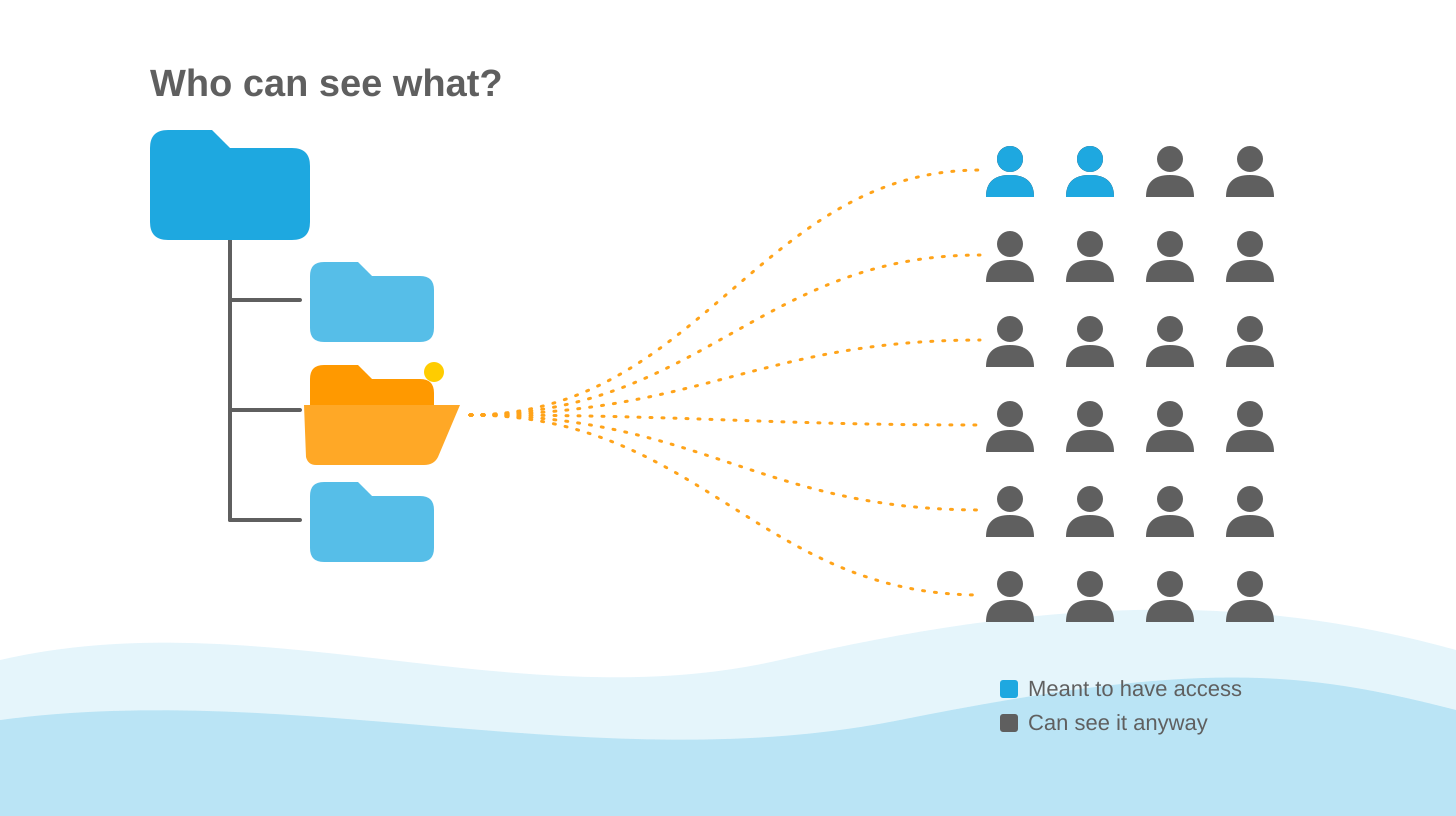
If your business uses Microsoft 365 and is weighing up Copilot, the most important part of Copilot readiness is checking who can see what. Copilot can only show a member of staff information they already have permission to open. That sounds reassuring until you look at what your permissions actually allow. Files shared with the whole company years ago and old project sites that nobody closed down become easy to find once anyone can ask a question in plain English.
How does Copilot decide what someone can see?
Copilot works through Microsoft Graph, the layer that connects your email, Teams, OneDrive and SharePoint, and it respects the permissions already in place. Microsoft’s guidance says Copilot bases its answers on the data each user already has permission to access. It does not ask whether that person ought to have access in the first place.
Before Copilot, an overshared file was protected by obscurity. Someone would have to know it existed and go looking for it. Copilot does the searching on the user’s behalf, so that protection disappears. Microsoft calls this “oversharing,” and addressing it is the first step in its own Copilot deployment guidance.
What might oversharing look like in practice?
Here is an illustrative example. A member of staff asks Copilot to summarise everything about this year’s pay reviews. If an HR spreadsheet is saved to a site the whole company can open, Copilot can draw on it. Nobody set out to break a rule. The file was visible to more people than intended, and now it is easy to find.
Common causes include:
- Sharing links set to anyone in the organisation, or anyone with the link
- Team sites were set up for a project and were never closed down
- Leavers and old guest accounts that still have access
- Folders whose permissions were changed by hand and no longer match the site around them
- Sensitive files were saved to general areas because it was quicker at the time
Why does this matter more now?
Copilot used to be priced for large enterprises. Microsoft now sells Microsoft 365 Copilot Business as an add-on for smaller organisations on an eligible Microsoft 365 Business plan. In the UK, it is listed at £13.80 per user per month on an annual commitment, a first-year offer that runs until 31 December 2026. The standard price is £16.10. Both exclude VAT. That puts Copilot within reach of many SMEs, and some will switch it on before anyone looks at permissions.
Personal data seen internally by people who should not have access can still be a data protection problem under UK GDPR, even if nothing leaves the business. Salary details and client contracts also carry commercial risk.
What has changed in Microsoft’s safety controls?
Until recently, a common way to buy time was Restricted SharePoint Search, which limited Copilot to an approved list of sites. Microsoft stopped organisations from switching it on from 31 July 2026 and will retire it on 31 January 2027. Its replacement, Restricted Content Discovery, works the other way round. You can name individual sites to hide from Copilot and company-wide search, while everything else remains visible.
If the old control was set up for you, check what will happen when it ends, because Microsoft will not automatically move the settings over. Neither control changes who can open a file. They buy time while you fix the permissions underneath.
A Copilot readiness checklist
- Find what is broadly shared. Microsoft includes many SharePoint Advanced Management features with Copilot licences, including reports that show overshared sites and sharing links. Check which ones your plan gives you before relying on them.
- Fix the sensitive areas first. HR, finance, board papers, client contracts and anything holding personal data.
- Tighten default sharing settings so new links go to specific people unless someone deliberately chooses otherwise.
- Remove access that should have been removed. Including leavers, completed projects, and stale guest accounts.
- Label confidential information. Sensitivity labels, where your licence includes them, add protection that stays with the file wherever it goes.
- Start small. Pilot Copilot with a handful of users and use Restricted Content Discovery to keep sensitive sites out of its answers while you tidy the rest.
- Keep checking. Permissions drift as people join, leave and share files. Put a review in the diary every few months.
None of this needs to delay Copilot for long. A focused cleanup of the riskiest areas, followed by a small pilot, lets you reap the benefits while keeping sensitive files where they belong.
Speak to us
Clearsky IT is a managed service provider based in Wiltshire, offering IT support, cyber security and AI consultancy. We can review who can see what across your Microsoft 365 setup, fix the riskiest areas first and help you run a sensible Copilot pilot. Speak to us before you switch it on.
Sources
- Microsoft Learn: Microsoft 365 Copilot best practices with SharePoint
- Microsoft Learn: Prevent oversharing in Microsoft 365 Copilot: deployment blueprint
- Microsoft Learn: Restrict discovery of SharePoint sites and content
- Microsoft Learn: Restricted SharePoint Search (retirement notice)
- Microsoft Learn: SharePoint Advanced Management licensing
- Microsoft UK: Microsoft 365 Copilot Business, price checked 16 November 2026
